Accessing PowerShell Graph via an Application

So, you'd like to manage Entra ID via PowerShell whether that is to run one off commands or series of fancy scripts, you're probably aware this will now require utilising 'PowerShell Graph'.
What you are doing is using PowerShell to access the Graph API endpoints, and as a result, everytime you connect you need to specify the scope of access, for example User.ReadWrite.All.
This in itself is fine, but you might like more control over this process, and be able to even limit access to this application to set users or groups in your environment. Well, the answer is to create an Entra ID Application for this purpose.
Pre-Requisites
The following assumes that you have the PowerShell SDK already installed and updated to the latest version.
Creating the Application
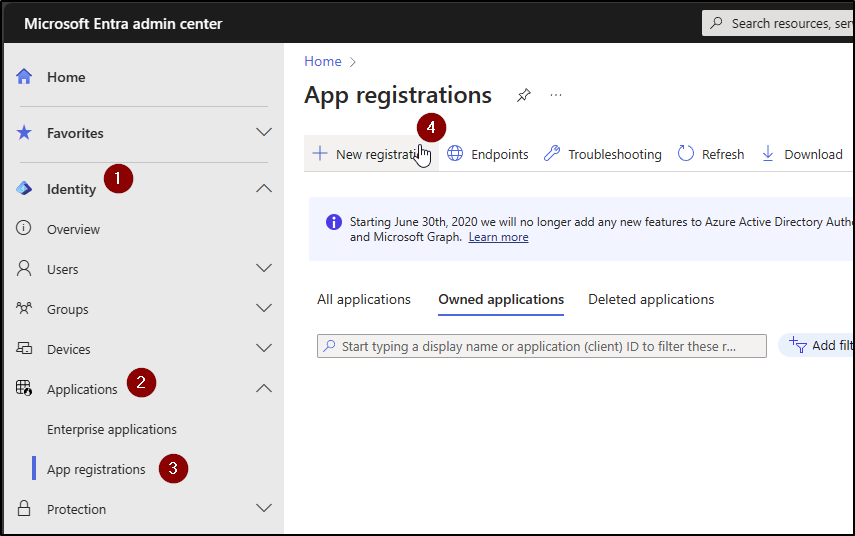
Firstly you'll want to load up the Entra admin center and once logged in:
- Expand out Identity > Applications > App registrations and select + New registration
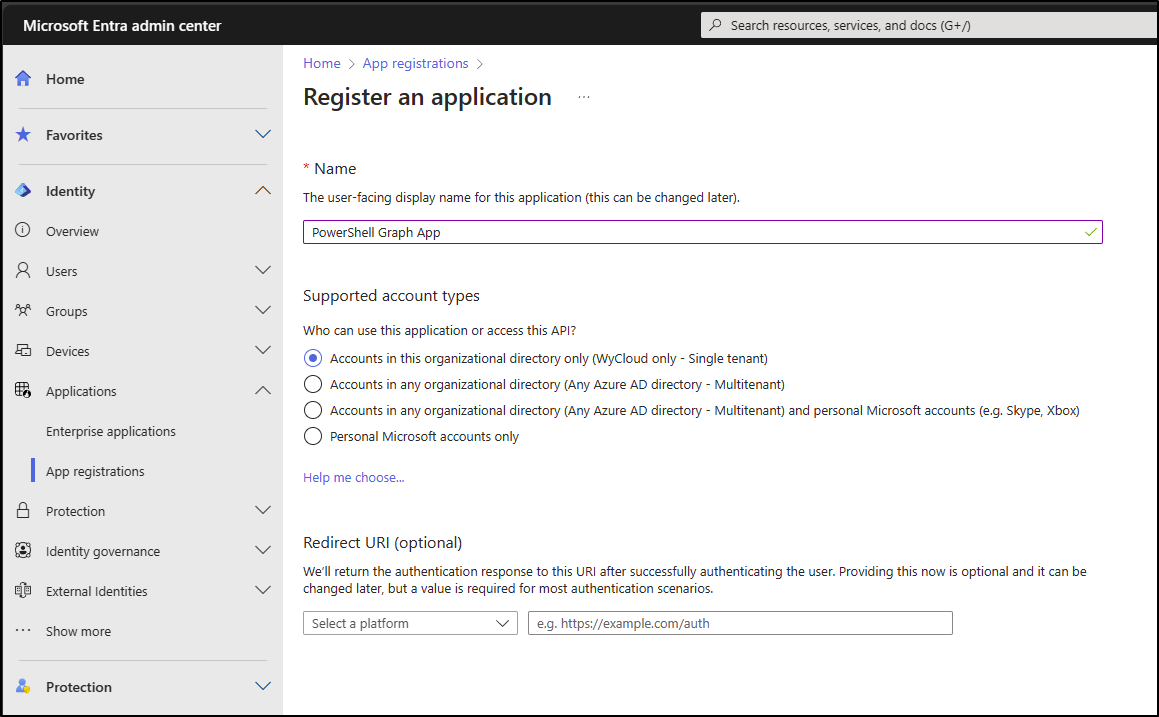
Provide the following information:
| Name | Name_Of_Your_App |
|---|---|
| Supported Account types | Accounts in this organizational directory only (Single tenant) |
| Redirect URI | Leave Blank |
Select Register once you are happy with your selection.
Take a note of both the Client ID and the Tenant ID as these will be required when connecting via PowerShell later.
Finally, navigate to Authentication within the Application and select + Add a platform, select Mobile and desktop applications then within the 'Custom redirect URIs' enter http://localhost/
Connecting to the app
Next up, ensure you have the latest version of PowerShell 7 installed and you have the information copied from earlier:
$clientId = <clientID>
$tenantId = <tenantID>
$scopes = "Your required scopes, e.g. user.read"
Then authenitcate with the app.
Connect-MgGraph -ClientId $clientId -TenantId $tenantId -Scopes $scopes
You will be prompted to interactively login. (you can add the flag -UseDeviceAuthentication if you are signed into an Entra ID Joined device or Hybrid Joined)
The web browser will display a message stating your authentication is complete and your terminal should return

Testing the permissions
You can run a simple command to get the context to verify authentication, Get-MgContext.
Or alternatively you could return the properities of a user, Get-MgUser.

Securing the app
Typically, you'll only want to allow this level of access to Entra to select indivduals, such as administrators or technical users. To do this head back into the Entra console and select Enterprise Applications, then under manage select Properties, ensure that Assignment required? is set to yes.
Next, assign your users or groups who you wish to have permission to this application under the Users and groups section.
Summary
You should now have access to the PowerShell Graph API utilising the application. You could next look at app only access for times when an interactive sign-in isn't required, this is a similar process but involves certificates for authentication.
For more information on the Graph API and PowerShell SDK see the microsoft documentation.