Adding External Email Warnings

When dealing with email security and trying to protect your organisation there are numerous steps that you can conduct as an administrator in order to help your users and provide them with the best possible chances of spotting a phish/suspicious email before it does any damage. First and foremost the best way to help your users would be to enrol them in an appropriate cyber education scheme and potentially run phishing scenarios with re-inforcement and education for those users who need it. However, there are some technical controls that can be implemented to aid your users, this post will detail setting a warning message to highlight external email to alert your users that the email is infact external.
There are a couple ways in which you can achieve this, I like to think of one way as 'the traditional' method of applying this, with the other utilising the native tooling of Exchange Online to append these messages.
I'll cover the native tooling first as personally I think it to be the most straight forward and ensures it's applied to the whole tenant and will display appropriately in all applications across all operating systems.
The Native way
This is a realtively new feature within the Exchange online eco-system and allows admins to easily apply an External message to your emails as well as adding 'External' to the subject line within your outlook clients.
Pre-Requisites
This does have to be enabled via PowerShell so it's recommended that the latest version of PowerShell is installed, the latest release of PowerShell 7 can be grabbed from the Microsoft Store if required.
You will also need to ensure you have the Exchange Online module installed, this is straight foward enough.
Install-Module -Name ExchangeOnlineManagement
You'll then need to connect with an account that has Exchange Admin permissions.
Connect-ExchangeOnline
This will provide a GUI for you to sign into the appropriate account.
Enabling the Message
To eanble the message you will need to run one cmdlet in the authenticated shell.
Set-ExternalInOutlook -Enabled $true
This will enable the messages tenant wide, that's it! That being said there are a few other flags and further customisation you can perform with this cmdlet, such as adding exceptions, allow lists etc. Check out the cmdlet page for more information.
How it displays
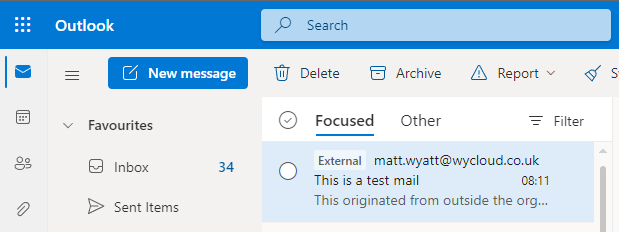
This method is native to Outlook and plays nicely across all clients and OS's, it prepends a tag on the subject of the email.
Ontop of this it also displays a policy tip at the top of the email.
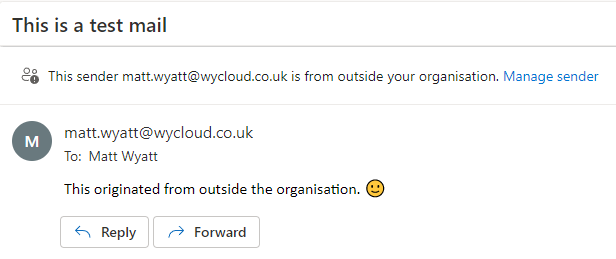
This tip isn't that obvious and can be missed, but it does give the option for users to easily block the sender if it is spam/junk.
Using Mail-Flows
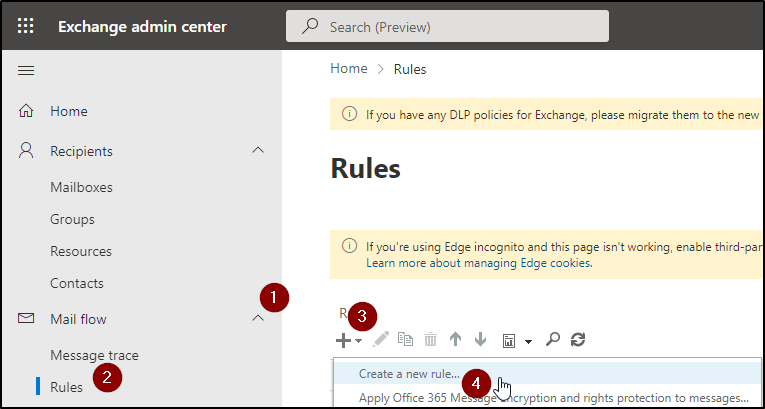
Utilising Mail flow rules is the more 'traditional' method to apply these messages, this is done via the Exchange Admin Centre then following the steps below:
- Navigate to 'Mail Flow' and expand the options.
- Select 'Rules'.
- Click on the + icon.
- Select 'Create a new Rule..'
- Provide an appropriate name then for the option of Apply this rule if... select The sender is located... then on the popup select Outside the Organisation
- Select the blue text of More Options at the bottom of the window.
- For the option of Do the following... select Apply a disclaimer to the message... then select prepend a dsiclaimer.
- Click 'Enter text...' and input a message of your choice, you can use basic HTML formatting here to customise how the message is displayed.
{
    <table border=0.5 cellspacing=0 cellpadding=0 align="left" width="100%">
    <tr>
    <td style="background:#ffb900;padding:5pt 2pt 5pt 2pt"></td>
    <td width="100%" cellpadding="7px 6px 7px 15px" style="background:#fff8e5;padding:5pt 4pt 5pt 12pt;word-wrap:break-word">
    <div style="color:#222222;">
    <span style="color:#222; font-weight:bold;">Caution:</span>
    This is an external email and has a suspicious subject or content. Please take care when clicking links or opening attachments. When in doubt, contact your IT Department
    </div>
    </td>
    </tr>
    </table>
    <br />
}
- Enter a fallback option of your choice in-case the message can't be applied.
- Select save and you're done.
How it displays
This method won't apply a message to the subject (Not to say you can't set up a second rule to do this, you could!) but it does apply a really obvious warning message to the top of the email that is hard to miss. You also have full control over the message and can prettify it/dull it down however you see fit as it's just some simple HTML.

Summary
Overall, both methods get the job done, there have been some reports of issues with outlook's message grouping and keeping conversation in order when using the mail-flow rule method. This was the driver for Microsoft creating the native way of achieving this, I also like that enabling it via the native tooling means it'll display nicely with other outlook clients for mobile devices too. However, it is a shame that the policy tip isn't a little more obvious or at the very least I'd like to be able to customise it.
Thanks for reading!