Exploring Entra Goat: Setting up

The talented people over at Semperis have recently released EntraGoat which provides a deliberately vulnerable Entra tenant to simulate real-world security misconfigurations. If you haven't checked it out, I urge you to over on the Github repo! EntraGoat
I wanted to check out the EntraGoat repo and CTF's ever since it was released so I thought I'd finally deploy it out to my developer tenant and document the process!
Getting Started
So there are minimal requirements to get started, however, some may be trickier to set up (in a lab environment) than others given that if you don't have access to an Entra tenant then there would be a cost barrier to entry here. Prerequisites:
- Global Admin access to a Microsoft Entra ID Tenant
- PowerShell 7 or higher
- Microsoft Graph PowerShell
- NodeJs
- NPM
Resources & Requirements
To keep my environments separate from my home setup I decided to spin up a small Azure VM and run the project from there. I'm not going to cover creating an Azure VM as I'm making an assumption here that if we're reading this then the creation of an Azure VM is not outside the realms of possibilities.
I didn't provision anything crazy, just a simple B1s virtual machine and permitted access to ports 22, 3000 from my own public IP address.
Nodejs & NPM
First up was NodeJS and NPM, this was really simple, as I was using the latest LTS version of Ubuntu I opted for using the official repository as my installation method.
Opening up a terminal and running:
sudo apt-get update -y && sudo apt install nodejs npm
Once complete I ran a quick check with node --version and npm --version, with these returning a value we know that nodejs and npm are now installed. Awesome.
PowerShell
I was running from a Linux device so I had to first grab PowerShell as a pre-requisite prior to installing Microsoft Graph SDK, thankfully, Microsoft make this rather trivial these days.
Much like creating the Azure VM, I won't go into great detail on this part, mostly as the documentation is crystal clear and can be found here - there's no point in me reinventing the wheel on this one.
Much like Node and Npm I opted to utilise the package manager approach to ensure that my package manager continus to maintain updates going forward.
To make sure PowerShell is installed you can run pwsh in a terminal, if your prompt changes to have 'PS' at the front, and the version is printed on the screen then PowerShell has been installed.
Graph PowerShell
With PowerShell up and running the final requirement is to install the Graph PowerShell SDK, again, this is really trivial. In a PowerShell prompt (that we just opened above) run install-module Microsoft.Graph -scope CurrentUser -Force If you already have the Graph PowerShell installed you might want to omit the -force here, and instead simply update your module. Otherwise you'll have multiple versions present.
You can confirm installation of this by running Get-InstalledModule.
Launching the EntraGoat frontend
Before we can launch any scenarios we need to make sure the lab is cloned and running. Luckily, this is simple
To clone the repo:
git clone https://github.com/Semperis/EntraGoat
To launch the frontend:
cd EntraGoat/frontend
npm install
npm start
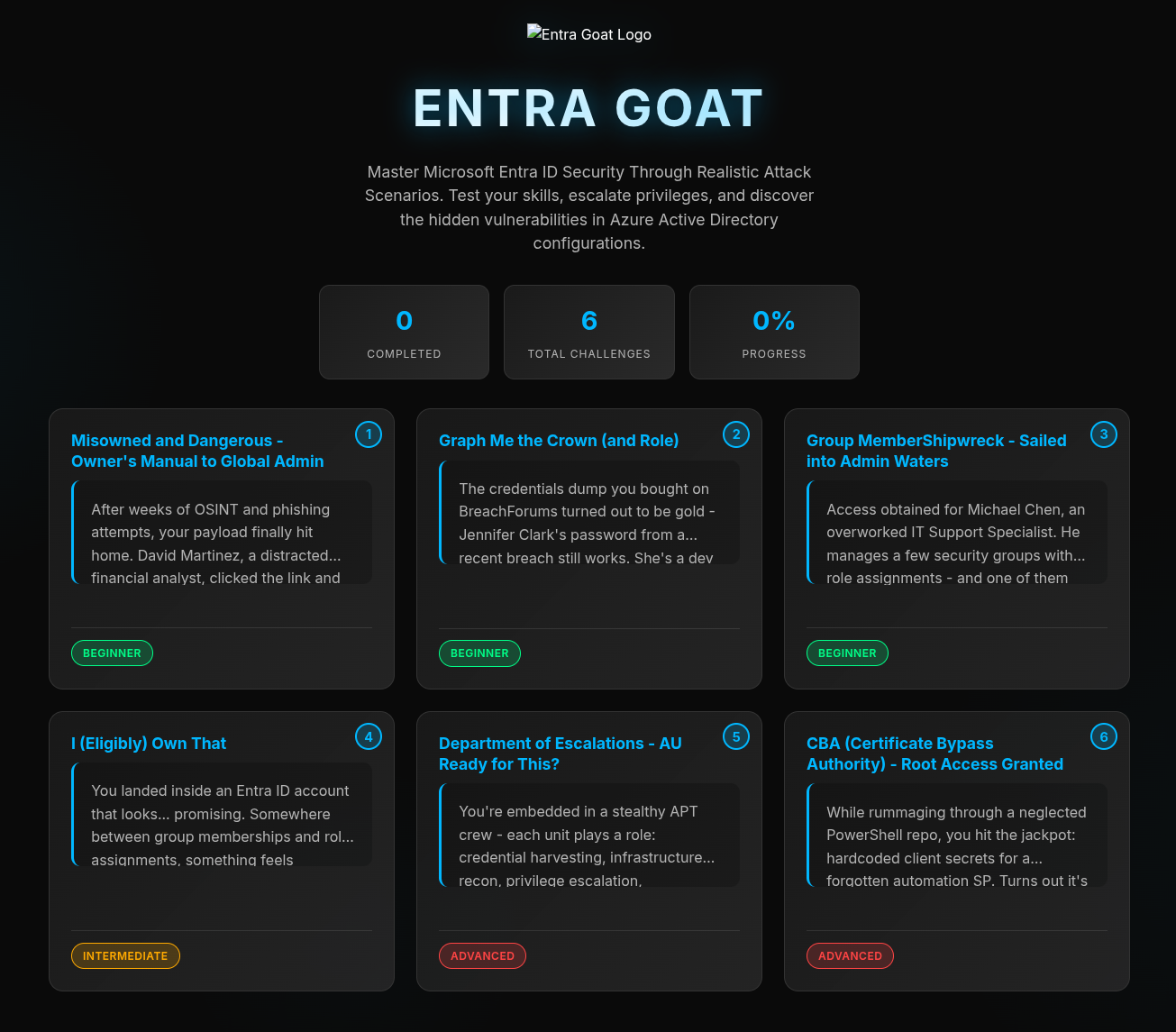
Once this is complete you'll be able to browse to the web interface on port 3000. In my case I was using an Azure VM, so I could use the public IP. If you're running locally you can use http://localhost:3000
All being well, after a few minutes you should arrive at the home screen!
Launching the first scenario
We're now ready to launch the first scenario, in order to do that we will need to first connect to our Microsoft Entra tenant via the Graph module we installed earlier.
Note: If you're running this all locally and can launch a browser session from your PowerShell instance then you will be automatically prompted to sign in when you run the scenario setup script. I have to complete the steps below as I was launching this off a server I was SSH'd into.
Authenticating to Graph
The only added step here is to first authenticate to the Graph PowerShell. To do this, I first had to understand the scope that was required for the scenario to run. Luckily, this was easy enough to find by opening up the scripts located within the scenarios folder, browsing Scenario 1 and on line 93 I found the below.
$RequiredScopes = @(
    "Application.ReadWrite.All",
    "AppRoleAssignment.ReadWrite.All",
    "User.ReadWrite.All",
    "Directory.ReadWrite.All",
    "RoleManagement.ReadWrite.Directory"
)
Running the above snippet in a PowerShell terminal to create the variable followed by running Connect-MgGraph -Scopes $RequiredScopes -UseDeviceCode provided me with a 6 digit code and a message to authenticate at 'https://microsoft.com/devicelogin'.
It's worth pointing out that Device Code login can be easily abused, and in a production setting should be restricted to those users that need it! As this is a lab/learning environment I'm happy to proceed.
After signing in I was prompted to approve the permissions the the application was requesting, this will obviously be VERY permissive due to the nature of what EntraGoat is doing, as we know the source and author and we're operating in a lab I am happy to proceed. I would NOT approve an application requesting this level of access in production without doing a severe amount of due diligence first.
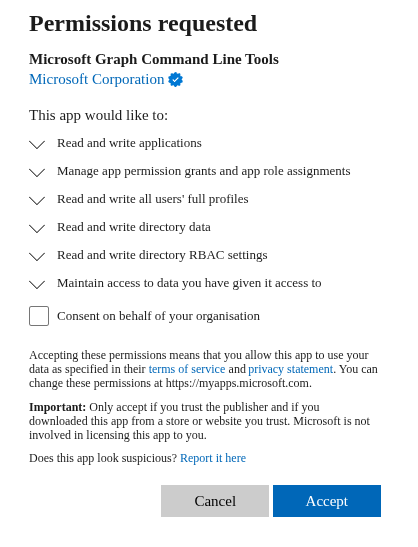
I ticked the box to approve consent across the org and hit approve, swiftly followed by a message that I was authenticated successfully.
Final setup
With that out of the way, the only remaining task is to now run the setup script! Within your PowerShell terminal first navigate to the scenarios folder cd EntraGoat/scenarios then calling the script for the first scenario by simply running ./EntraGoat-Scenario1-Setup.ps1 and after a while you should receive the following:

Summary
We now have all the required setup complete and a system ready to deploy EntraGoat scenarios for us to work our way through and learn from! I'll be going over these myself and hopefully putting a blog series together to cover the attack vectors covered in an attempt to teach myself and others a few things!