Administrative Units, the unsung hero of Entra

Administrative units are subjectively, the most under utilised tool within Entra ID and the more I use them the more use cases I keep finding for them.
So what are Admin units?
Administrative units are essentially just a container that can contain the following Entra objects:
- Users
- Groups
- Devices
They can be thought of like an mashup of an Organisational Unit (from active directory) and a group, allowing Entra admins the ability to carve up their directory and provide really granular access where required.
What do I need to use them?
Administrative units are a feature of Entra ID P1 and require an administrator to have the role of Privileged Role administrator to interact with them.
An example
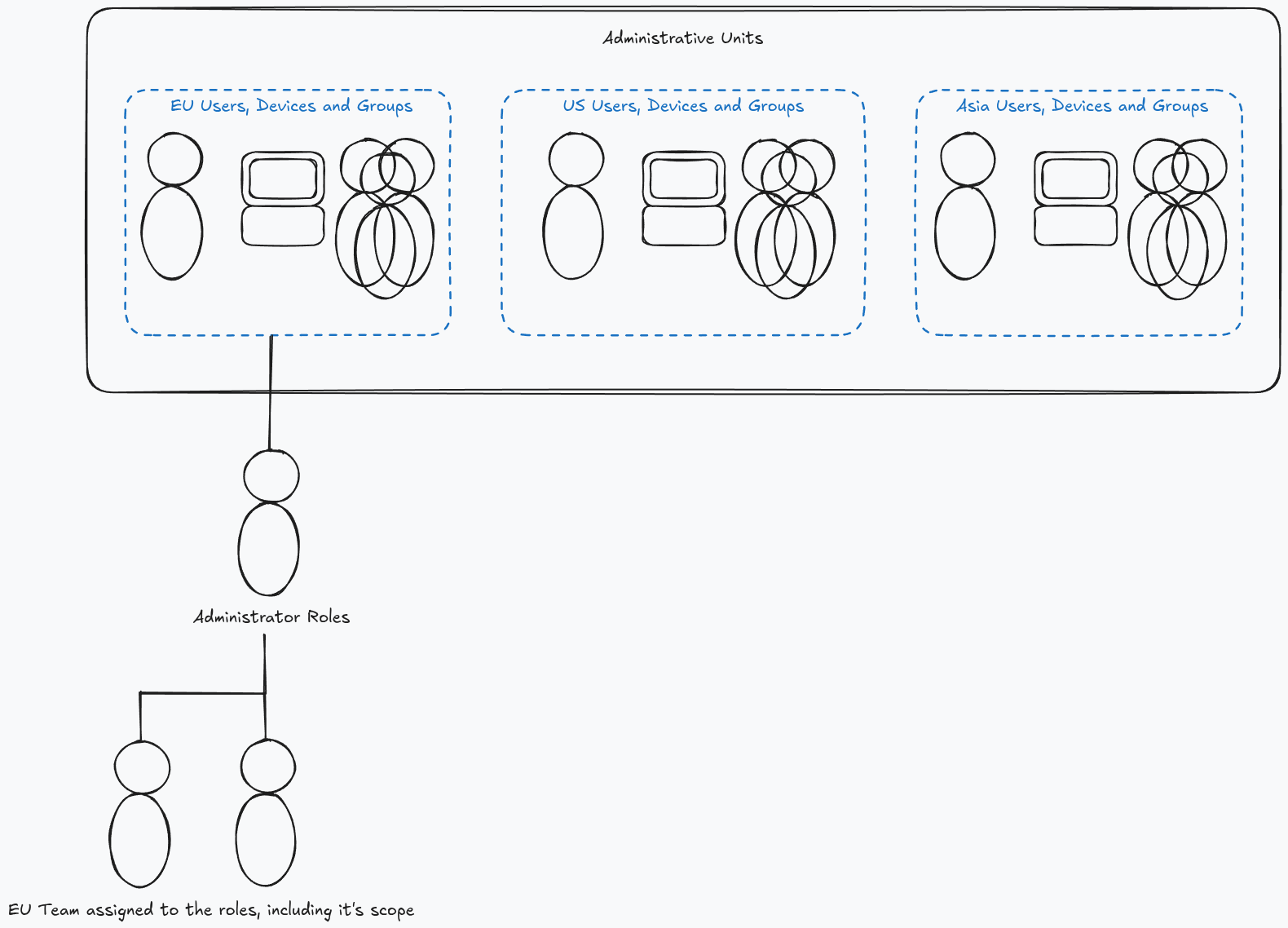
The most common usecase for an admin unit is splitting up large organisations that span multiple geographic regions. Using administrative units here allows you to assign user administrator permissions to certain administrators to control only the users they are responsible for.
How they help
You may still be wondering how do they help? Well in the example above the administrator roles are assigned to the administrative unit, then the users assigned to the role and it's scope, meaning that they will only hold the relevant roles over the selected objects. This reduces the blast radius of the admin account and ensures that the appropriate teams can manager their resources but not intefere with the rest of the tenant.
This also reduces the amount of privileges different administrator teams have over the tenant, ensuring that permissions are appropriate to complete their role.
Restricted Management Admin Units
This is where the fun begins, so, you may be thinking that this sounds great... "but if we still have 'core' or tenant level admins then they can just add themselves to these units or administer these objects anyway so what's the point in all this?"
You'd be right, that's where Restricted Management Administrative Units come into play. These units allow administrators the ability to protect specific objects in the tenant from modification from all other administrators, other than specific users. They function like an allow list on your objects but for your administrators.
RMAU's & Conditional Access
A popular option to use a restricted management admin unit (RMAU) is if you have a sensitive security group and you only want a select few administrators to be able to interact with it. The immediate scenario that comes to mind, and the highest recommendation I make is when you are dealing with Conditional Access. Conditional access is the front door to your organisational data, creating groups for assignments and exclusions, and placing these groups behind RMAU's, limiting the number of administrators who can edit the group membership goes a LONG way to ensuring you don't have unexpected exclusions added.
Placing objects within a RMAU does restrict who can manage those objects and their properties, this even stops Global Admins at the tenant scope from interacting with these objects.
This could break things, so plan accordingly!
Create a RMAU
Enough waffle, it's time to demo how they work and how to set one up for the Conditional Access scenario I highlighted earlier.
In this scenario I will have a Global Administrator account at the tenant scope, a security group to contain my conditional access policy exclusion users and a trusted admin, who is assigned the relevant roles at the restricted management administrative unit scope. I'll be using the Entra Portal for my overview, just as it's more visual - but these steps are possible via Graph PowerShell if preferred.
Let's get stuck in.
The Group
To get started we need a group. A simple security group will do.
- Navigate to https://entra.microsoft.com and login with an appropriate administrator
- From the left hand side, select Groups > All Groups > New Group
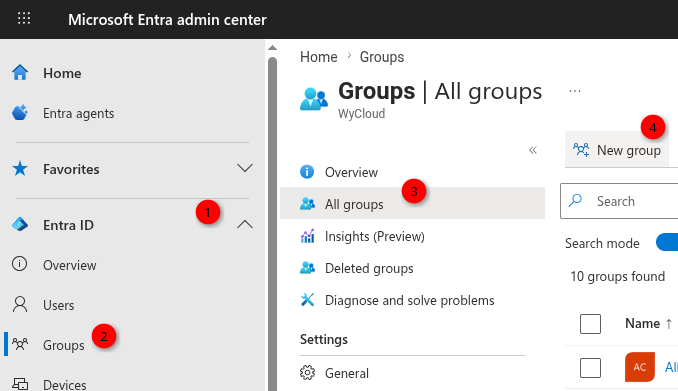
- Select Security as the group type and provide an appropriate name inline with your naming convention.
That's the group done, now to the administrative unit.
The administrative unit itself
The all important administrative unit.
- Navigate to https://entra.microsoft.com if you aren't already there with at least Privileged Role Administrator
- Select Roles & Admins > Admin Units > +Add.
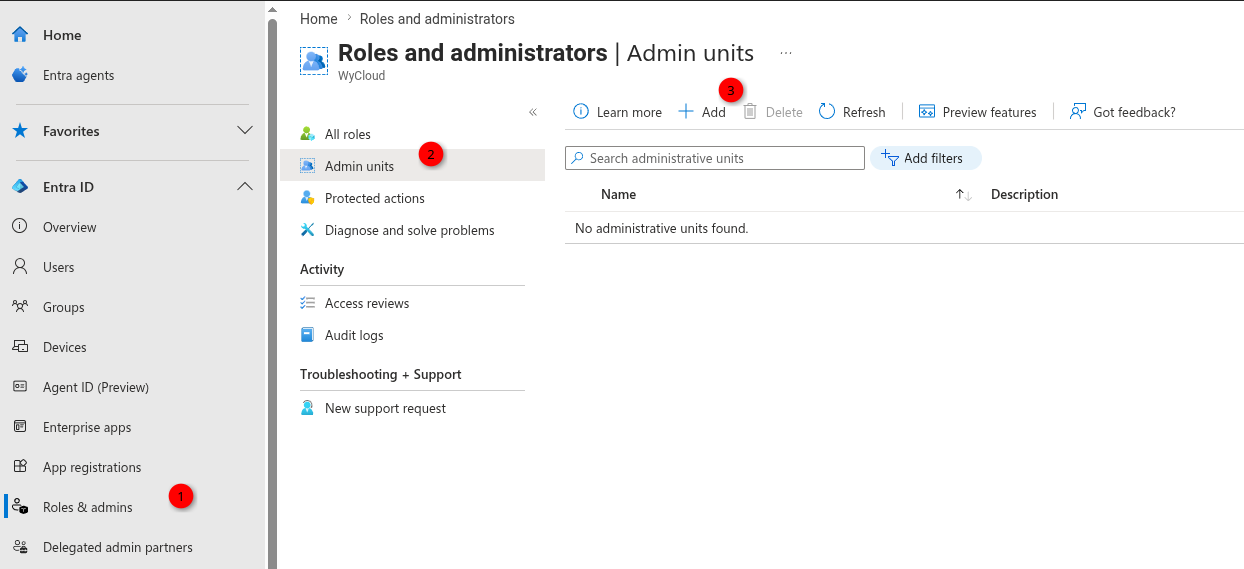
- Provide a suitable name for the admin unit, an optional description and importantly toggle 'Restricted Management Administrative unit'
- Select Review and Create to create the administrative unit, you do not need to assign roles at this stage.
Restricted management mode can not be enabled after the admin unit is created, only during creation.
Assign objects to the RMAU
The admin unit is made, now we need to place objects inside in, in our demo this will be the group we made earlier.
- From the list of admin units in the tenant, select the one we just created it.
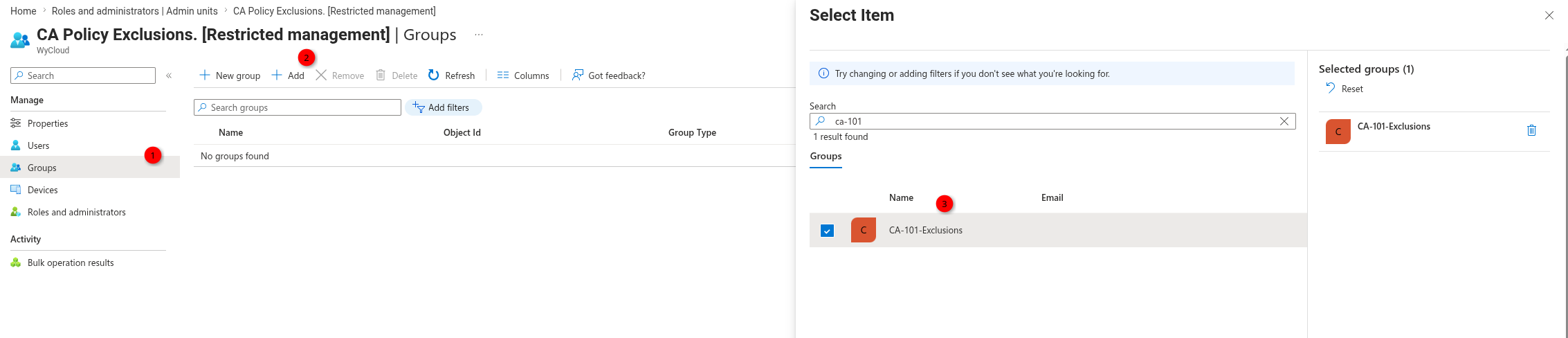
- Then select Groups and select Add member
- Search for the group name you wish to add, select it and press Select
Assign roles at the RMAU scope
You can assign roles to the admin unit scope, assigning roles here will give the users you assign the role to those permissions over the objects within the administrative unit.
- Start in to the Entra admin center (https://entra.microsoft.com)
- Select Roles and Admins > Admin Units and then select your admin unit you made earlier.
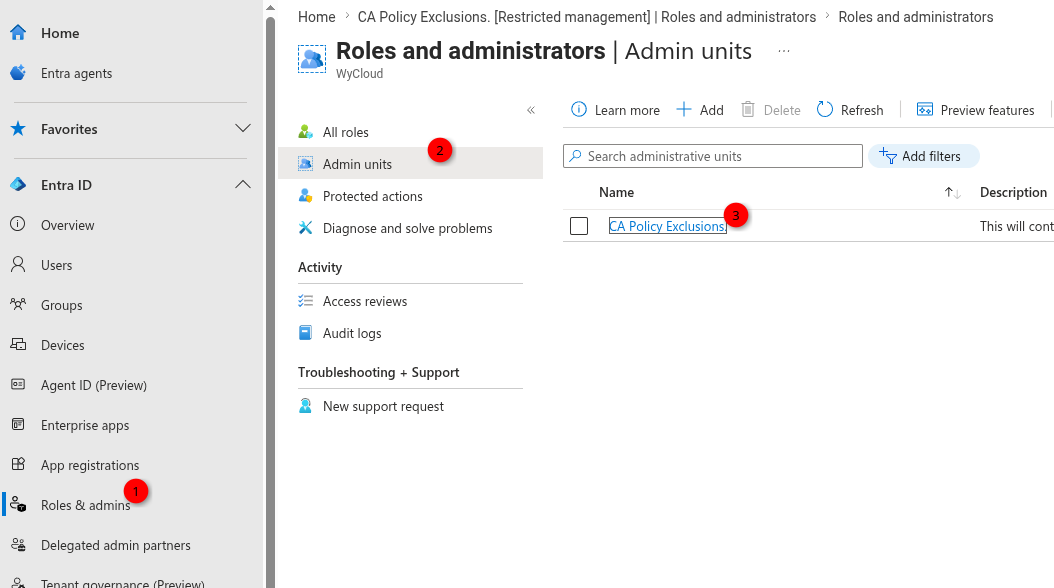
- From within the Admin unit select Roles and administrators, from the list of admin roles select the role you wish to assign users to for the unit.
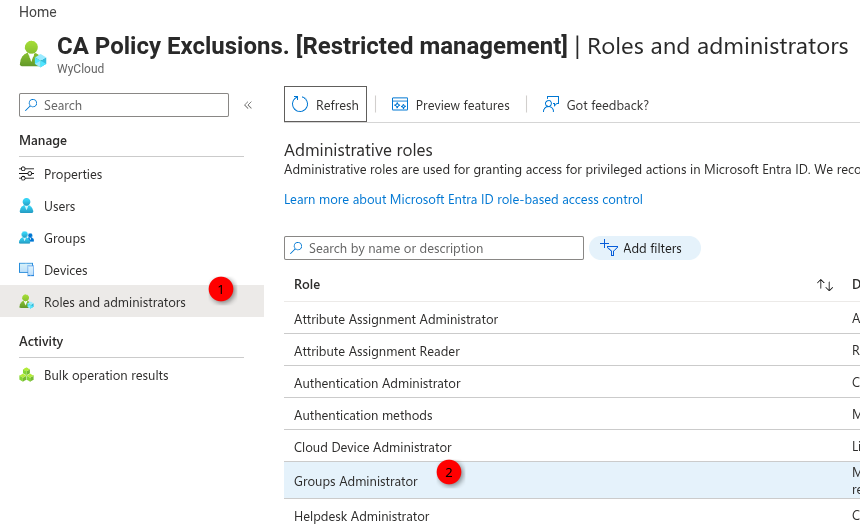
- Select the role, such as Group Administrator and select Add Assignments click the blue text that reads 'No member selected' this will allow you to select your members to assign the role.
You can assign either active or eligible roles at this stage, if you have Entra ID P2 consider using PIM.
- With the role assigned that should be all there is to it.
Testing
The final step is to test that the RMAU we created stops any administrator other than those specified from editing our group.
- Sign into the Entra admin centre with an administrator that is not assigned to a role linked to the administrative unit, in my example I'm using a global admin!

- Navigate to the group we created earlier va Groups > All Groups > Select your group > Members
- You'll notice that you get an error and can no longer add members to the group. Great!

- As a test, below I have signed in with a user who is assigned the groups administrator role at the restricted management administrative unit scope and repeated the steps above.
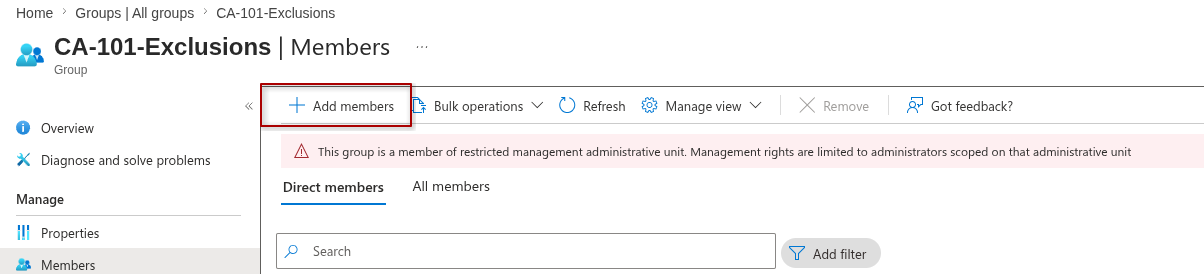
Success, I can add members to the group even when the Global Admin couldn't, this is the benefit of restricted management administrative units.
Summary
Administrative units have many use cases, the above is a really great case for them however there are many, many more.
I know there are some people out there that will want to point out that either a global admin or a conditional access admin could just remove the group exclusion from a conditional access policy. Yes I know, but keeping tabs on who holds roles to be able to do that is a damn sight easier than keeping tabs across numerous policies for exclusions.